
Pantry
Know what is in the cupboard – with scanner, amounts, best-before dates, the "Expiring soon" warning and taking over what you bought.
The pantry shows what you have at home. Open it via Pantry at the top of the shopping list. Up to 30 items it is free; with MealCrew Plus 300 fit in.
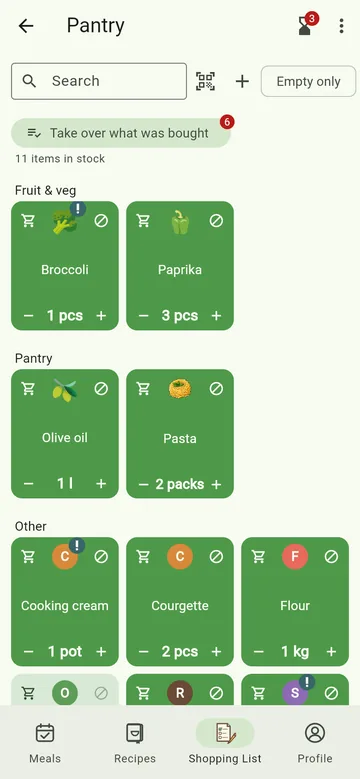
All buttons at a glance
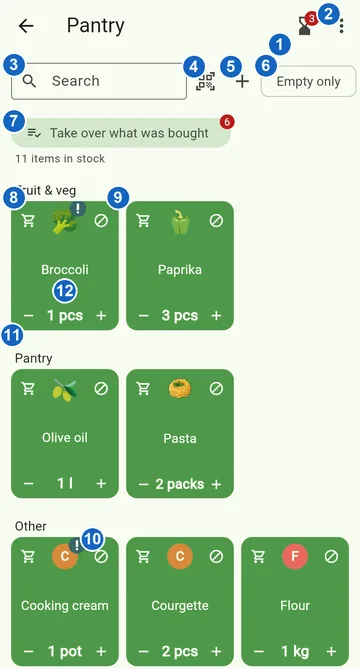
- Hourglass – Expiring soon: the red number says how many items will soon reach their best-before date.
- ⋮ (three dots) – order, tile size, Tidy up and Help for this page (more).
- Search – find an item in the pantry.
- Scan icon – add an item by its barcode.
- + – add an item by hand.
- Empty only – show only what has run out.
- Take over what was bought – book what was ticked off on the shopping list into the pantry; the red number says how much is waiting.
- Shopping cart on the tile – put the item on the shopping list; the amount here stays.
- ⊘ All gone – the item has run out and stays, greyed out.
- ! on the icon – the best-before date is coming up.
- − and + – change the amount.
- Tile – tap for All gone – add to the list, Record best-before dates, Merge with … and Remove the item; press and hold to edit.
Not sure what a button does? In the ⋮ menu at the top right, Help for this page brings you straight here. And pointing at an icon with the mouse, or pressing and holding it, shows its name.
Adding items
- Scan – scan icon at the top, barcode in front of the camera, done.
- By hand – use + to enter name, amount and unit.
- After shopping – Take over what was bought shows what was last ticked off on the shopping list. You can still change the new amount before booking it.
Counting packs
If an item has a pack size (usually set by scanning, otherwise when editing), the pantry counts packs: "4 × 450 g". Taking over what you bought adds the packs – "1" plus three packs makes 4. If something is bought in a different unit without a pack size (say "250 g flour" on "flour 2"), it counts as one purchase. And an item kept in grams ("900 g sugar") adds a 1000 g pack in grams.
If a specific product was attached to a general name while shopping ("Emmental" with the cheese from Aldi), it lands on the "Emmental" line. Scanning the same product in the pantry later finds that line again.
Keeping amounts up to date
Use − and + on each tile to change the amount. The cart at the top left puts the item on the shopping list with one tap; the amount in the pantry stays. The ⊘ icon at the top right means All gone: the item stays, greyed out, so you know it is missing. Empty only shows everything that has run out.
Tapping the tile opens more: All gone – add to the list, Record best-before dates, Merge with … and Remove the item. A long press opens editing with name, amount, unit and pack size.
Best-before dates
Tap an item and choose Record best-before dates. With Add date you enter the date from the pack. The date applies per piece: of three yoghurts, one may expire on Monday and two on Friday – use − and + next to the date to split the count. If they all share a date, the Applies to all switch is enough. The tile then shows how long the item keeps.
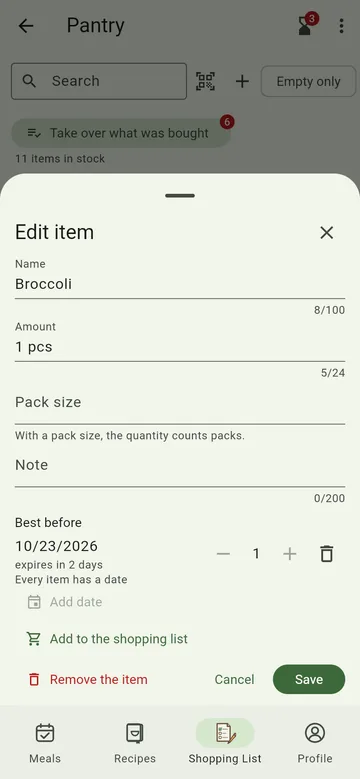
If you use up one piece of an item with several dates via −, MealCrew asks which one is gone – usually the oldest.
Expiring soon
The hourglass at the top of the pantry shows a number as soon as something expires soon. Tap it to see the items, sorted by date:
- At the top you choose how many days ahead MealCrew warns you and whether you see only the next days or all with a date.
- Select items and tap Find recipes with … items: Cook from your pantry then shows recipes that use exactly these items (MealCrew Plus).
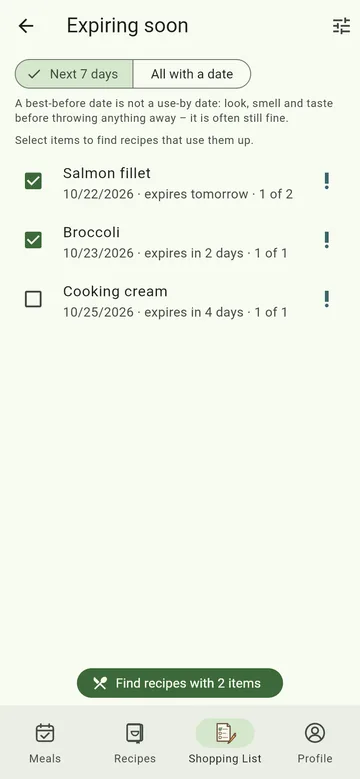
A best-before date is not a use-by date: look at, smell and taste expired food first – it is often still fine. MealCrew does not send push notifications; you see the number on the hourglass when you open the pantry.
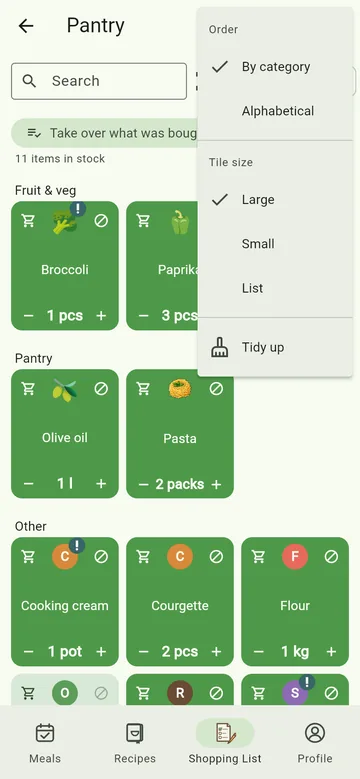
The ⋮ menu
The three dots at the top right ("View and more") hold:
- Order – By category or Alphabetical.
- Tile size – Large, Small or List.
- Tidy up – MealCrew suggests duplicate items to merge and empty ones that haven't been used for a long time. You can undo this for seven days.
What can I cook with it?
With MealCrew Plus, Cook from your pantry shows which of your recipes and which MealCrew recipes work with what is in here – with a percentage and a list of what is missing. No AI needed.
In recipes with AI, From the pantry adds your supplies to the request as ingredients to use – good against waste. And From meals on the shopping list tells you what you already have.