Planning meals
Calendar by month, week, day and list with filters; entries for home cooking, deliveries and restaurant visits; wish list and insights.
Meals shows what you had and what is planned – for the whole crew.
All buttons at a glance
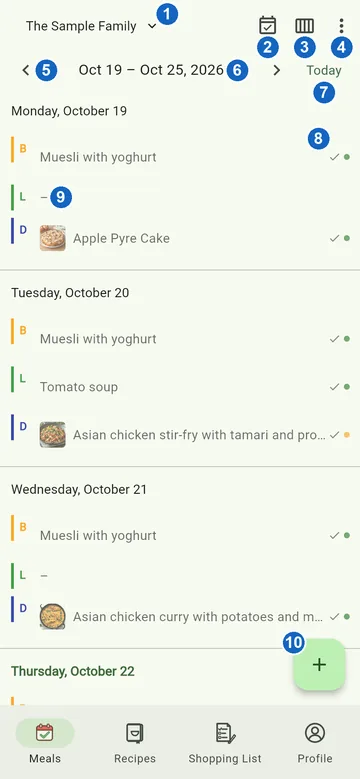
- Crew – switches between your crews if you are in more than one.
- Calendar with a tick – Suggest meals: MealCrew fills free slots for the next few days (MealCrew Plus).
- View – month, week, day or list, plus the wish list and insights (more).
- ⋮ (three dots) – Filter, Search, in the week Print or save as PDF (Plus), in the browser Refresh, and Help for this page.
- Arrows – one week back or forward.
- Period – tap to pick another week in the calendar.
- Today – back to the current week.
- Tick and dot at the end of a row – the tick means "eaten", the coloured dot is the dish's traffic light (green, yellow, red).
- Empty slot (–) – tap to add an entry right there. Tap an entry to open it; press and hold for its menu, such as Move to … or Take servings. Tapping a day's heading opens the day view.
- + – add a new entry (more).
Month, day and list have the same header. The day view adds the camera: Capture a meal with a photo creates an entry with a picture straight away.
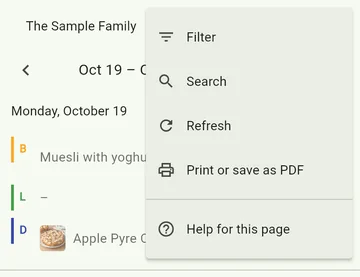
Not sure what a button does? In the ⋮ menu at the top right, Help for this page brings you straight here. And pointing at an icon with the mouse, or pressing and holding it, shows its name.
Views
Use the grid icon at the top right to pick a view: Month, Week, Day or List. The same menu takes you to the Wish List and the Insights and sets how entries look in the month (filled rows, colour bars or dots).
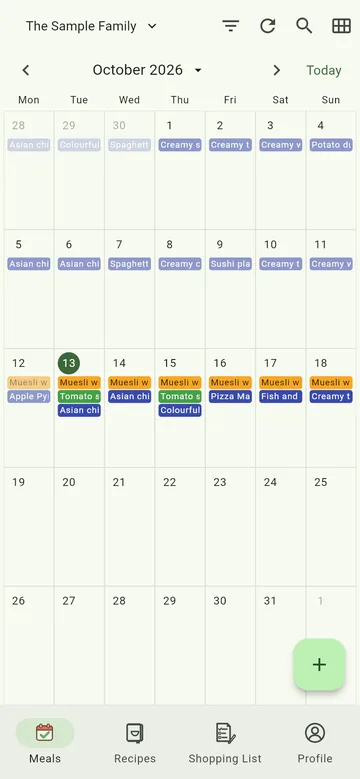
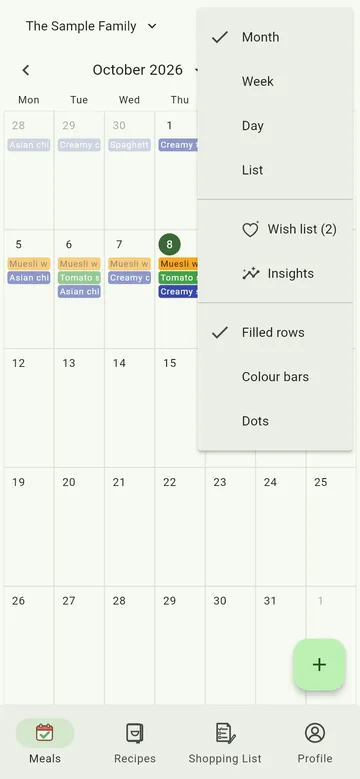
The week view shows every day with breakfast (B), lunch (L) and dinner (D) – with a photo when the meal comes from a recipe. Which meals appear even when empty is set in your profile under Meals shown. A tick means: eaten.
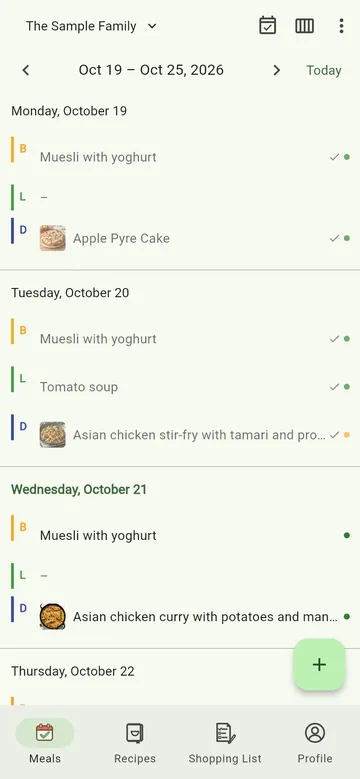
⋮ → Search searches all of the crew's entries for dishes, ingredients and restaurants; Today takes you back to the current day.
Filtering
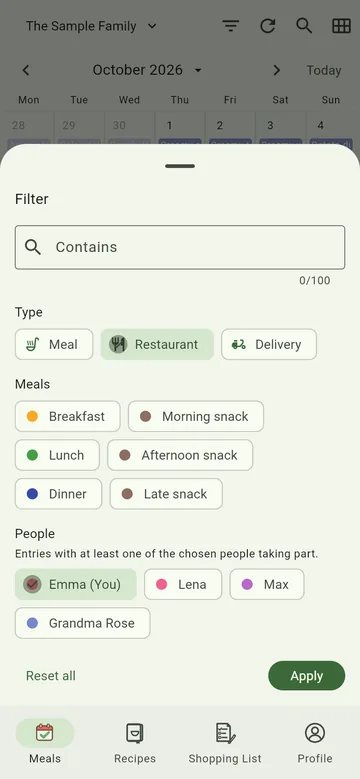
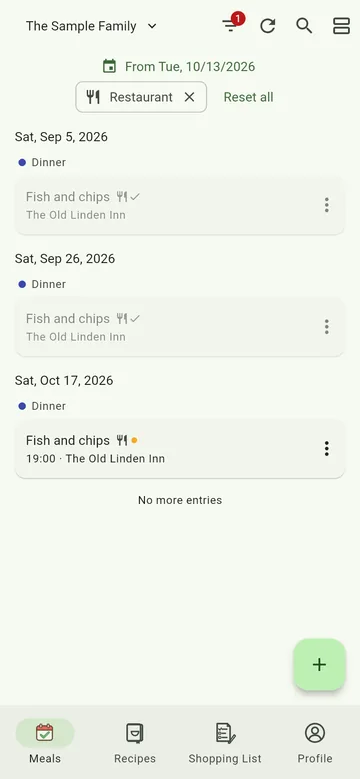
⋮ → Filter shows only certain entries. You can filter by type (meal, restaurant, delivery), by meals (breakfast, lunch, dinner …), by people and by a word. Your own person comes first among the people – one tap and you only see the meals you were part of.
The filter applies to every view: month, week, day and list. While it is set, a red number on the three dots shows how many conditions are active. Below the header each condition is listed; the cross removes it. Reset all shows everything again. In the list the filter also sets where the list starts.
Adding an entry
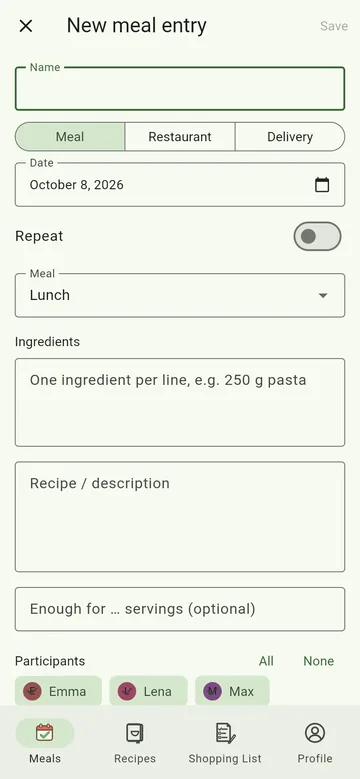
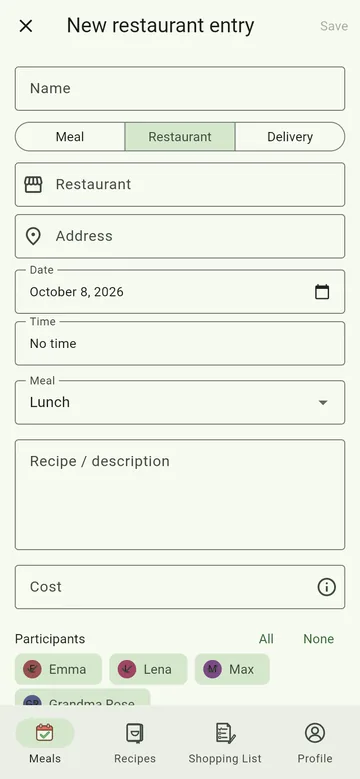
Tap + and choose the kind at the top:
- Meal – cooked at home. Add ingredients, recipe or description and the number of servings. The ingredients can go onto the shopping list later with one tap.
- Restaurant – eating out, with restaurant, address, time and cost.
- Delivery – delivered, with delivery service and cost.
Below you choose the date, the meal and who eats along. Repeat creates a series, such as "pizza every Friday".
The quickest way is from a recipe: open it and tap Add to the plan. Or have several days filled at once: Suggest meals (calendar with a tick at the top, MealCrew Plus).
For a Meal you also enter how many servings you are cooking. If that differs from the recipe, MealCrew converts the ingredients and tells you right in the entry ("The recipe serves 4, 3 are planned") – one tap and you cook for as many as the recipe says. You fetch the ingredients of planned meals on the shopping list with From meals – for a period of your choice, e.g. From tomorrow Until Sunday (more).
Meal prep
If you cook ahead – on Sunday for the week, or a raw veggie salad in the evening for the next few days – add it to the Meal prep meal. It sits at the end of the day and is hidden at first: switch it on under Profile → Meals shown, or tap + Meal prep in the day.
In the entry's menu, Plan for later schedules what you prepared on the days it will be eaten. There it shows “Prepared on …”. The ingredients go on the shopping list only once, through the meal prep entry. Enough servings for all days? Set that on the meal prep entry under how many servings.
With Take portions you eat from it bit by bit: cooked ahead on Monday, two portions for Wednesday lunch, three for Thursday dinner. Pick the day, the meal and how many – the meal prep entry then shows “5 of 8 portions left”.
Move to … in an entry's menu puts it on another date – without the editor, saved at once. Wrong day? The message offers Undo.
A deleted entry goes to the crew's Trash, where anyone in the crew can restore it (Edit crew → Trash).
Wish list
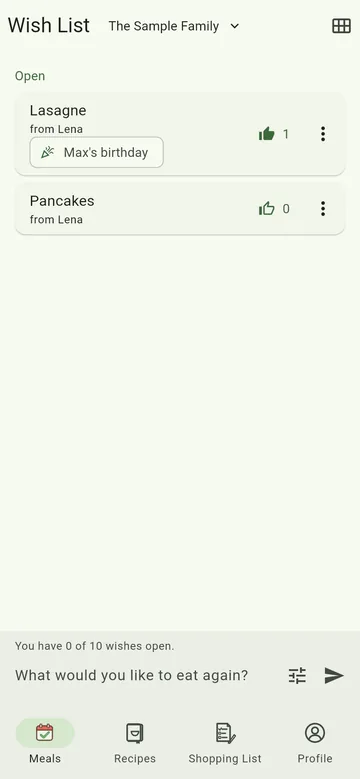
On the wish list the crew collects what they would like to eat again – with an occasion if you like, such as "Max's birthday". The thumb says "Me too"; popular wishes move to the top. Via the three dots you plan a wish straight away or add it to an entry that is already planned. It then moves to "Planned".
Insights
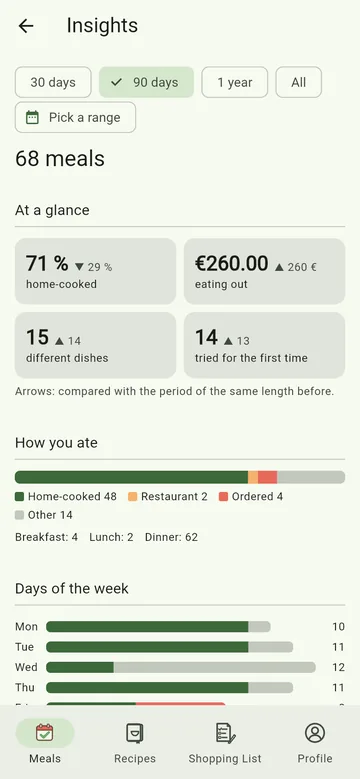
With MealCrew Plus the insights show for 30 days, 90 days, a year or a period of your choice:
- At a glance – share of home cooking, spending on eating out, different dishes and dishes tried for the first time; the arrows compare with the period of the same length before.
- How you ate and days of the week – home-cooked, restaurant or delivered, also per weekday ("Friday is pizza day").
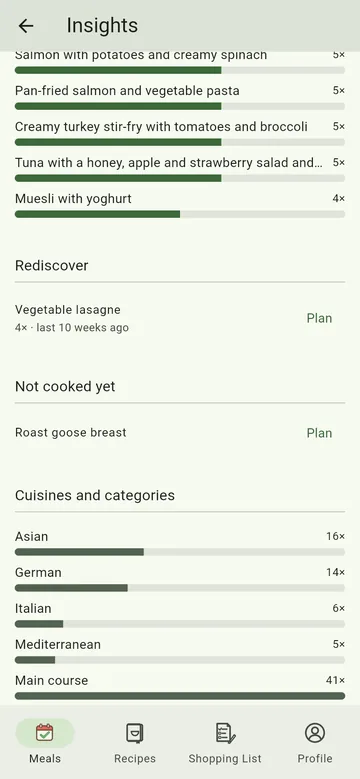
- Most eaten, cuisines and categories and the average preparation time.
- Rediscover – favourite dishes you haven't had for a while and recipes never cooked yet; Plan puts them straight into the plan.
- Favourite places – restaurants and delivery services with visits, total and average, plus restaurant visits and deliveries per month.
- Bought most often and Pantry – what is often on the shopping list, what keeps running out in the pantry (one tap puts it on the shopping list) and what is always there. These two count from 8 October 2026.
- The traffic light, the most popular recipes and each person's favourite dish.