Shopping list
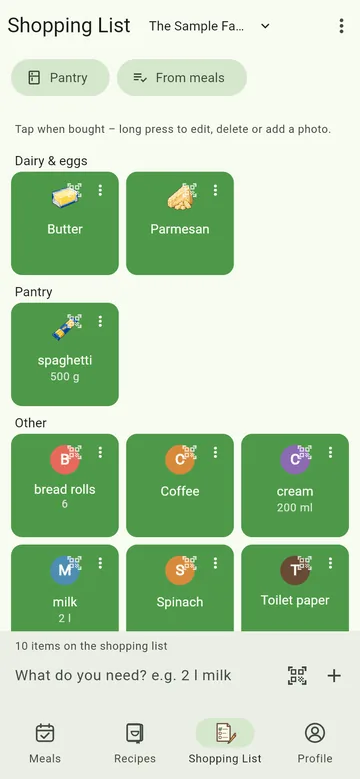
Type or scan items, take ingredients from recipes and the week, tick them off in the shop – together with your crew.
Every crew has a shared shopping list. Whatever someone adds or ticks off, everyone sees straight away – handy when two of you are in the shop at once.
All buttons at a glance
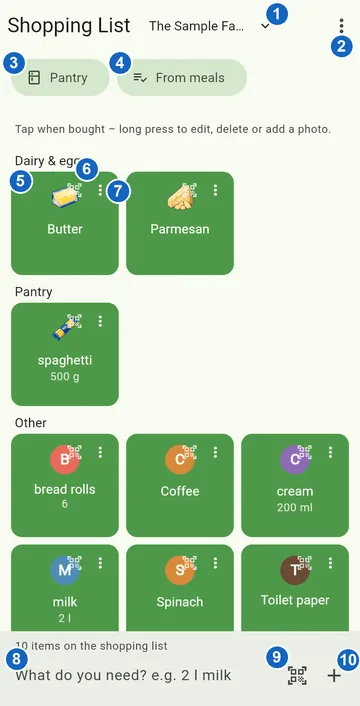
- Crew – switch to another crew's list if you are in more than one.
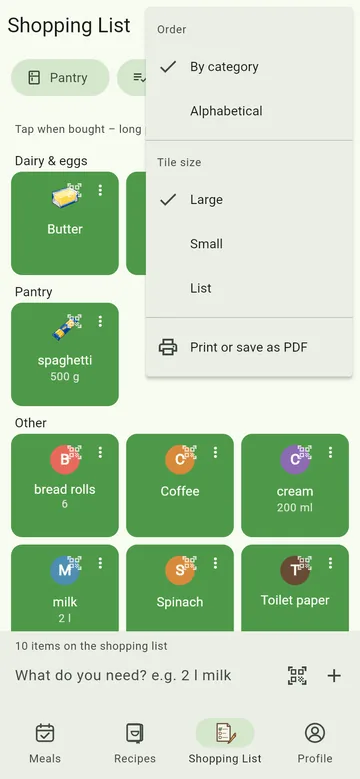
- ⋮ (three dots) – order, tile size, Print or save as PDF (Plus) and Help for this page (more).
- Pantry – opens the pantry.
- From meals – take over the ingredients of the planned meals (more).
- Tile – tap when bought; press and hold to edit amount, note, priority, photo, or delete.
- Scan icon on the tile – scan the actual product for a general item (more).
- ⋮ on the tile – the same options as pressing and holding; only in the browser, where pressing and holding is awkward.
- Input box – type what you need, e.g. "2 l milk".
- Scan icon at the bottom – scan the barcode of a pack (more).
- + – put the typed item on the list.
With an item selected, a bar at the bottom offers the amount, Urgent, Can wait and Scan product.
Not sure what a button does? In the ⋮ menu at the top right, Help for this page brings you straight here. And pointing at an icon with the mouse, or pressing and holding it, shows its name.
Adding items
Type what you need into the field at the bottom, e.g. 2 l milk – MealCrew splits it into amount, unit and name and sorts the item into a section (fruit & veg, bakery, dairy & eggs …). Many items get a symbol of their own. While you type, MealCrew suggests what you have bought before; under Recently used one tap puts an item back on the list. The view stays where it is – so you can tap several regular items in a row.
Pack size and number of packs
In the shop you buy packs: 3 × 450 g mushrooms. That is why editing an item has a Pack size field (e.g. "450 g") next to Amount. Once it is set, the amount counts packs – and that is how they later arrive in the pantry: if it says "1" there and three packs are added, it's 4.
When you scan, MealCrew brings the pack size along by itself if the open product database knows it.
A symbol doesn't fit or is missing? Long-press the item and choose Symbol doesn't fit or is missing? Let us know at the bottom – we'll add it. Symbols currently work best for German item names.
Scanning a barcode
Tap the scan icon next to the input field and point the camera at a pack's barcode. If MealCrew knows the product (from Open Food Facts and similar open databases), it goes straight onto the list. If it is unknown, you name it once – next time it is recognised.
The actual product for a general item
The list says "Emmental", and the Emmental from Aldi is in your trolley. Tap the small scan icon at the top right of the tile and scan the pack: the item stays "Emmental" but gets the product's picture, price and pack size. The tap doesn't tick anything off. Scan product in the bar at the bottom does the same when the item is selected.
If you had already scanned the pack separately, MealCrew merges both items. In the pantry there is still just one "Emmental" line.
From recipes and the week
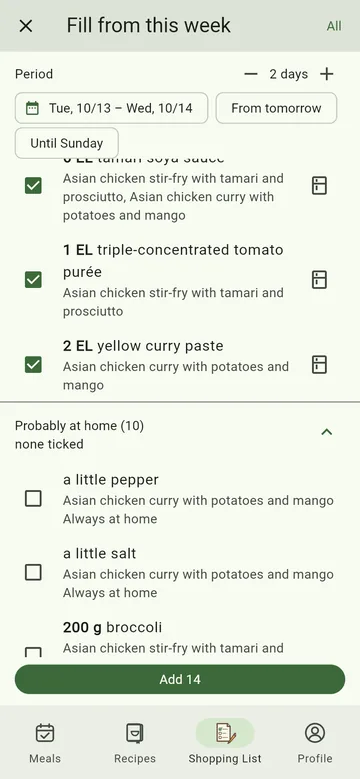
- From meals at the top collects the ingredients of the planned meals – the next seven days by default. Set the period at the top: with − and +, via the calendar, or with From tomorrow and Until Sunday ("tomorrow until Sunday" is two taps). Taking them over puts the selection on the list – and one tap undoes it.
- Only meals still to come count: anything marked as eaten is left out, and so is anything from today whose time has passed – breakfast from 10 am, a meal with a set time one hour after it.
- The list has two parts. At the top is what is probably needed – ticked. Below, collapsed, is what is probably at home and therefore not ticked: what is already on the list, what the pantry covers, small amounts (a pinch, a teaspoon, a clove) and everything in the crew's Always at home (salt, pepper, oil …). Notes like "In the pantry: 1 l" or "Always at home" say why. Need one of them after all? Expand the part and tick it.
- Whatever you can only buy whole is rounded up: 3.75 eggs become 4, 0.75 egg yolks 1. Grams, millilitres and spoons stay exact.
- As a crew admin, the fridge icon at the end of a row adds an ingredient to Always at home right away; it then moves down. You maintain the whole list under Edit crew → Always at home.
- In a recipe, the shopping cart puts the ingredients on the list, converted to a different number of servings if you like.
In the shop
Tap when bought – the item is ticked off. A long press opens editing: amount, note, priority (Urgent or Can wait), a photo (e.g. from the leaflet, so everyone knows what is meant) or delete. In the browser, where long presses are awkward, each item also has three dots for this.
The ⋮ menu
The three dots at the top right ("View and more") hold:
- Order – By category (like the shop) or Alphabetical.
- Tile size – Large, Small or List; the list fits the most on screen.
- Print or save as PDF – with MealCrew Plus, e.g. for the fridge door or for someone without the app.
No signal in the shop
Under a concrete ceiling the connection often drops. The shopping list still works: adding, ticking off, undo, deleting, amount and priority work offline too. Above the list it says how many changes are waiting. As soon as you are back online, MealCrew sends them in order and reports "… changes sent".
If someone else has deleted an item in the meantime, your change to it is dropped – the message says so. Scanning, photos, prices and the pantry still need a connection.
Settings
In your profile, Simplify amounts turns "250 g of mince" into "mince" – you buy a pack anyway.