
Profile and crew
Set name, language, view, AI and data use; manage your crew; MealCrew Plus; feedback, your data and your account.
Your settings
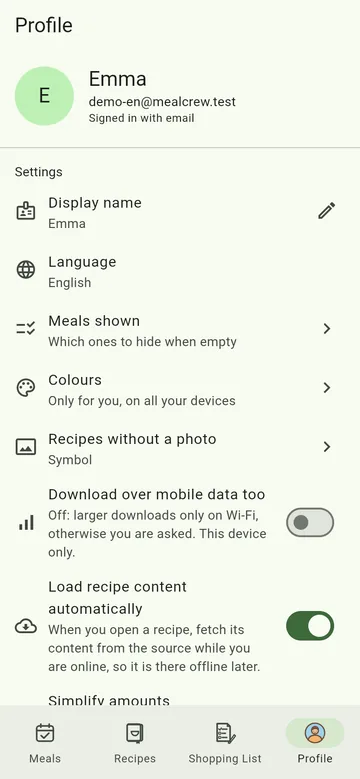
In Profile you set what only concerns you:
- Display name and Language (German or English).
- Meals shown – which meals appear in the calendar even when empty.
- Colours – the colours of the meals, on all your devices.
- Recipes without a photo – what the recipe tile shows instead of a photo.
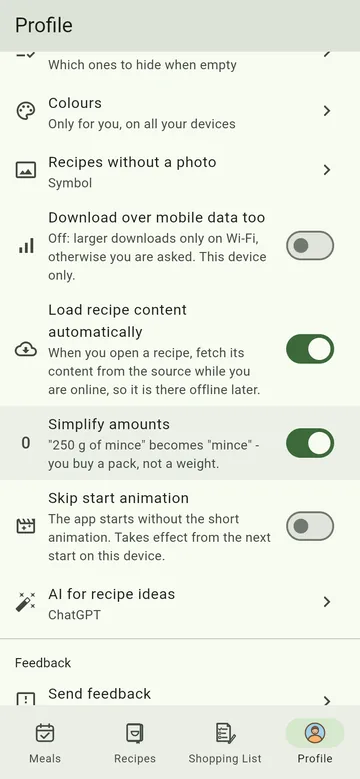
- Download over mobile data too – off: larger downloads only on Wi-Fi.
- Load recipe content automatically – fetch the content of recipes from other websites when you open them (see the FAQ).
- Simplify amounts – "mince" instead of "250 g of mince" on the shopping list.
- Skip start animation.
- AI for recipe ideas – which AI the magic wand opens.
Sign-in methods
Under Sign-in methods you link Google or Microsoft to your account. After that, each of these ways gets you into the same account – no second one is created.
Managing your crew
In Meals, tap the crew name at the top and then Edit crew. There you find:
- the Crew type (family & household, flat share, friends, just me …) and the name (pencil at the top),
- everyone with role and diet, Add person and Invite members,
- the crew's MealCrew Plus and the Trash with deleted entries,
- Always at home: what you never run out of (see below).
Always at home
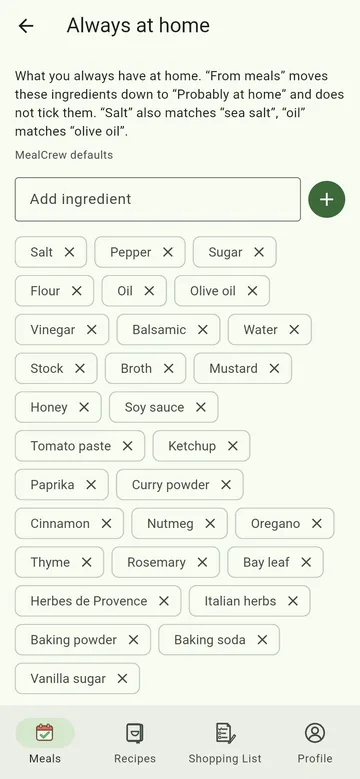
Salt, pepper, oil and the like appear in almost every recipe but rarely on the shopping list. Under Edit crew → Always at home you set what you always have. From meals on the shopping list moves these ingredients down to "Probably at home" and does not tick them. "Salt" also matches "sea salt", "oil" matches "olive oil".
MealCrew comes with defaults. Crew admins add and remove entries or restore the defaults from the menu; everyone else can see the list.
More in Getting started.
MealCrew Plus
MealCrew is free and ad-free. Plus applies to a whole crew – one pays, everyone has Plus – and adds:
- up to 10 photos per entry and recipe and 2,000 per crew (without Plus 1 photo and 100 per crew),
- the insights,
- printing the weekly plan and shopping list or saving them as PDF,
- 300 instead of 30 items in the pantry and importing several links at once.
With Plus you help MealCrew stay free of ads and data selling. Where you can subscribe is shown in the app wherever you come across a Plus feature.
Feedback, news, your data
- Send feedback – bugs, ideas or praise. You can attach up to three photos, such as a screenshot of the bug. My feedback shows our replies; open feedback can still be changed there, and photos added.
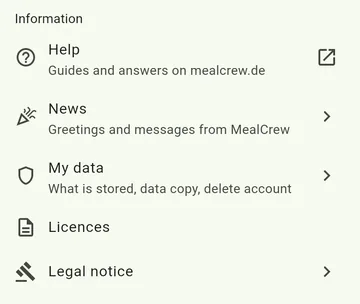
- Help – these pages.
- News – greetings and messages from MealCrew.
- My data – what is stored, a copy of your data and deleting your account.
Delete your account
You can delete your account yourself at any time, even without the app on your phone:
- Open the app – or app.mealcrew.de in your browser – and sign in.
- Tap Profile and, at the very bottom, Delete account.
- Type DELETE to confirm.
What happens:
- Your profile, your own recipes with their photos and your crew memberships are deleted.
- Crews in which nobody else has an account are deleted with all their entries.
- In crews with other members the shared entries remain; you stay there as a person without an account so past meals stay correct. The crew can rename or remove this person.
- Your feedback is anonymised; photos sent along are deleted.
A Google Play subscription does not end when you delete your account – cancel it in Google Play first.
If you can no longer get into your account, write to kontakt@mealcrew.de from the account's email address and we will delete it for you. More in the app privacy policy.