
Frequently asked questions
Answers to questions people have actually asked us.
The AI app opens without any text – what now?
That is normal: an AI's app (ChatGPT, Gemini …) doesn't accept text from other apps. That is why MealCrew has already put the prompt on the clipboard – your phone's temporary storage for things you copy and paste. You only have to paste it:
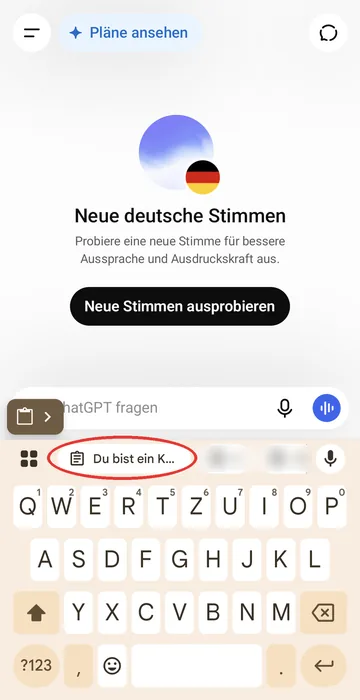
- Paste: In the AI app, tap the empty input field. The first words of the prompt appear above the keyboard – tap them and the whole text is in the field. No suggestion? Long-press the field and choose Paste.
- Send: Tap the arrow and wait for the answer.
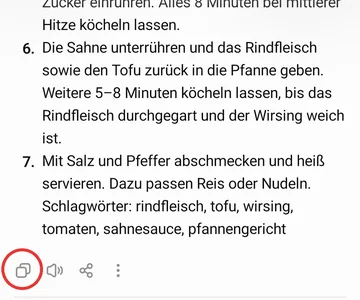
- Bring the recipe back: Below the answer there is a row of small icons – tap Copy (two overlapping rectangles). Switch back to MealCrew: at the top it asks "There is a recipe on the clipboard. Use it?" – confirm. If it doesn't ask, tap Paste the AI's answer.
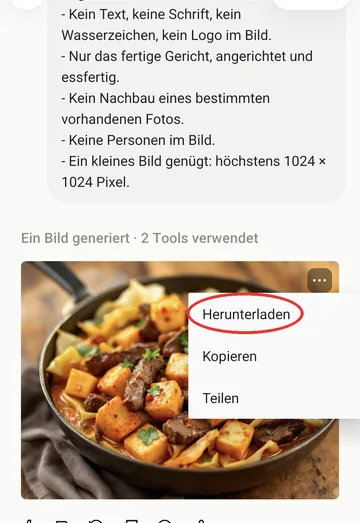
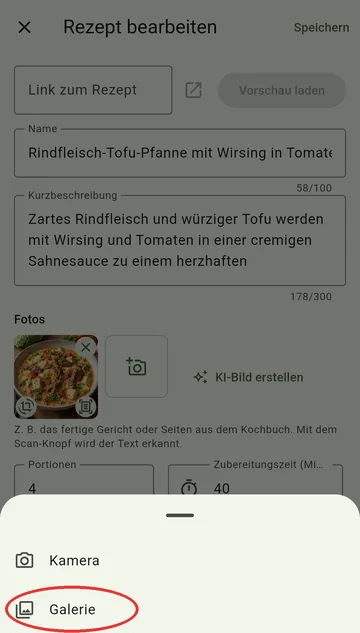
- Bring the picture back (for recipe pictures with AI): pictures don't fit on the clipboard. Tap the generated picture or the three dots on it, then Download or Save – it goes to your gallery. (Pictured: Mistral; if ChatGPT has hit its daily image limit, try another AI.) In MealCrew, tap the camera under Photos in the recipe, choose Gallery and pick the picture.
How do I create a recipe with AI?
Open Recipes and tap the magic wand at the top right. Choose what you fancy and tap Create prompt. MealCrew opens your AI (e.g. ChatGPT) with the finished text; you copy its answer and bring it back into MealCrew as a recipe. Step by step with pictures: Recipes with AI.
Why can't I see the ingredients of a recipe from my crew?
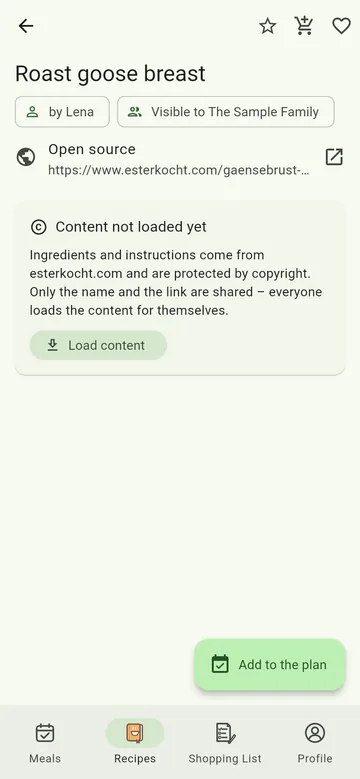
Most likely the recipe comes from another website – someone in your crew added it via a link. The ingredients and instructions on such sites are protected by copyright. MealCrew therefore shares only the name and link; everyone loads the content for themselves from the source. The recipe then says Content not loaded yet.
How to get it:
- Open the recipe and tap Load content. Ingredients and instructions are then on your device – offline too.
- To have this happen by itself in future, switch on Load recipe content automatically in your profile. It works when you are online, and by itself only on Wi-Fi – on mobile data the button stays, unless you have switched on Download over mobile data too.
Nothing can be loaded automatically from Pinterest and Instagram, for legal reasons. Open the link instead, or take a screenshot of the recipe and use text recognition.
Does the shopping list work without a signal?
Yes. Adding, ticking off, undo, deleting, amount and priority work offline too; MealCrew sends the changes as soon as you are back online. More under Shopping list.
Why don't salt and pepper count in "Cook from your pantry"?
Almost everyone has salt, pepper, water, oil and sugar at home, but hardly anyone enters them in the pantry. If they counted, hardly any recipe would reach 100 %. MealCrew therefore assumes them and names them at the top of the list. More under Cook from your pantry.
Why aren't salt, oil or garlic ticked in "From meals"?
Because they are probably at home already: they are in your crew's Always at home, come in small amounts only (a pinch, a teaspoon, a clove), or the pantry covers them. You find them collapsed at the bottom under "Probably at home" and can tick them there. Crew admins decide what counts as always at home under Edit crew → Always at home. More in Shopping list.
Your question isn't here? Write to us in the app under Profile → Send feedback. Questions that come up often get answered here.