Guide – recipe pictures with AI
Have an image AI create a matching photo or illustration for a recipe and save it with the recipe.
A recipe without a photo? Have one made. As with recipes with AI, MealCrew only writes the request – the AI of your choice paints the picture, and you bring it back yourself.
1. In the recipe, tap "Create an AI image"
Open the recipe for editing (pencil at the top) or start a new one. Next to Photos you find Create an AI image. The button becomes active as soon as the recipe has a name.
2. Choose content and look
Decide what goes along from the recipe: the ingredients (names only), category and tags, and if you like the finishing touches such as garnish and dish. Below you choose the Style (photo or illustration) and the Format – square suits the recipe tile.
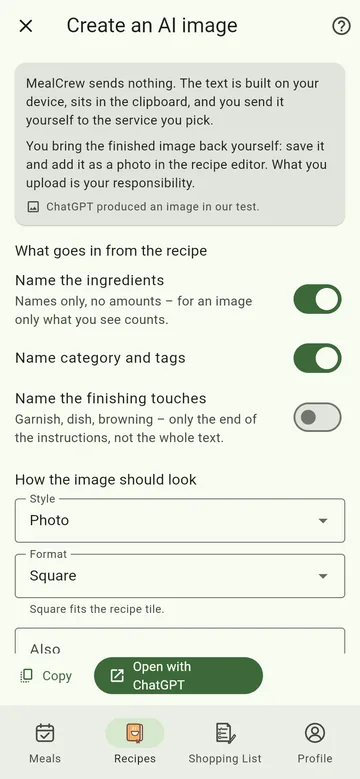
3. Copy and open
Tap Open with ChatGPT (or your AI). The text is already on the clipboard; paste it there. The line at the top of the screen tells you whether the chosen AI produced a picture in our test – not every AI can make pictures.
4. Save and add the picture
Save the finished picture on your device. Back in the recipe, tap the camera icon under Photos, pick the picture, adjust the section and Save the recipe.
You are responsible for what you upload – that includes pictures from an AI.