
Calorie diary
Keep track of what you eat and drink – take over meals from your crews, add your own items by barcode, nutrition label photo, a photo of your meal or AI, share items with others, daily totals with nutrients and a history with a daily goal. Visible only to you.
In the calorie diary you keep track of what you eat and drink in a day: the meals from your crews' plans and your own items such as a glass of milk or a chocolate bar. MealCrew estimates calories and nutrients, you confirm or correct them. The day's total is at the bottom, with the history below.
Only for you. Nobody else sees the diary – not even your crew. MealCrew does not ask for your age, weight or height.
With MealCrew Plus. Without Plus you can record on 30 days. Only days with entries count – days without entries use up nothing. After that, the days so far stay readable and editable; new days need Plus. Viewing and deleting always work.
Opening the diary
The quickest way is a tab of its own, Diary, in the bar at the bottom – choose it under Profile → Main areas. Otherwise, in Meals, tap the view menu at the top and choose Calorie diary. From the day view it opens for the day shown, otherwise for today. You can also start from a meal: Calorie diary in its detail view or Calorie diary in its ⋮ menu opens the diary on the meal's day – for a meal in the future, on today. Use the arrows at the top or swipe left and right to change the day; tapping the date opens the calendar.
The first time, MealCrew asks for your consent: a food diary can say something about your health, so nothing is stored until you agree.
Taking over meals
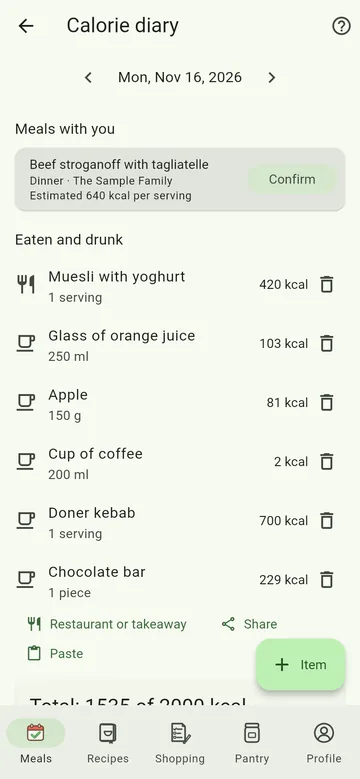
Meals with you lists the day's meals you take part in – from all your crews. They only count once you confirm them:
- Tap Confirm.
- Choose how much you had: ¼, ½, 1, 1½ or 2 servings, or enter your own number.
- Calories and nutrients come from the recipe (per serving). If you have confirmed the same meal before – say yesterday's copied breakfast with the same ingredients –, your value from then is used. If the recipe only has calories, MealCrew estimates the nutrients from the ingredients; without values in the recipe, both are estimated from the ingredients. If that doesn't work either, Estimate with AI helps (see below).
- Confirm adds the meal to the diary.
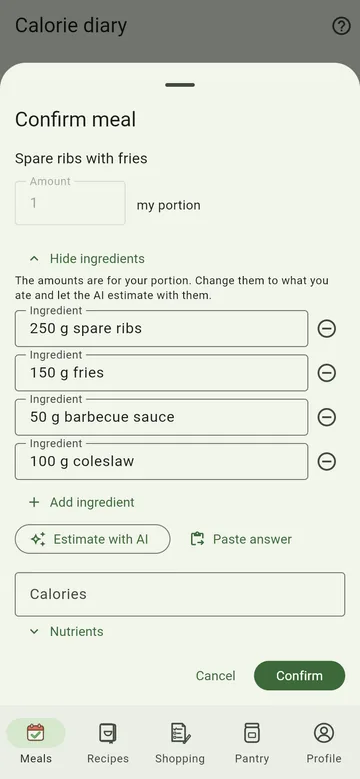
If the meal has its own ingredients – say a restaurant visit with "300 g spare ribs, fries, salad" –, Adjust ingredients lets you match them to what you actually ate: change amounts ("200 g" instead of "300 g"), remove or add ingredients. The amounts then count for your portion, and Estimate with AI sends the changed list.
Adding your own item
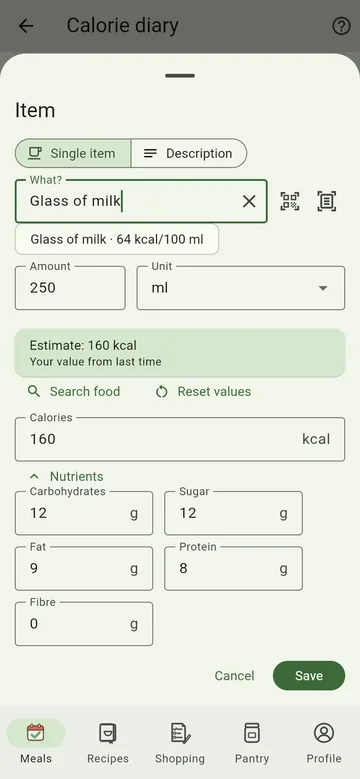
Tap + Item at the bottom.
- What? – for example "glass of milk" or "chocolate bar". If you entered something similar before, your value shows up as a suggestion below the field. The x in the field clears the name and the values.
- Amount and unit – grams, millilitres, pieces or servings. For "glass of …", "cup of …", "bottle of …" or "can of …" (also in German) MealCrew suggests a usual amount (250, 200, 500 or 330 ml). Switching between g and ml keeps the amount. For pieces or servings of common foods MealCrew uses a typical weight – "1 piece of banana" is about 120 g – and shows it below the estimate.
- Estimate – below, MealCrew shows what it found and where from: your value from last time, the nutrition table (BLS), Open Food Facts or the AI. Calories and nutrients follow the amount.
- Search food – if the estimate doesn't fit, pick a food from the nutrition table yourself. Its name replaces what you typed; the values are per 100 g or 100 ml.
- Reset values – clears calories and nutrients if you want to start over.
- Nutrients – shows carbohydrates, sugar, fat, protein and fibre.
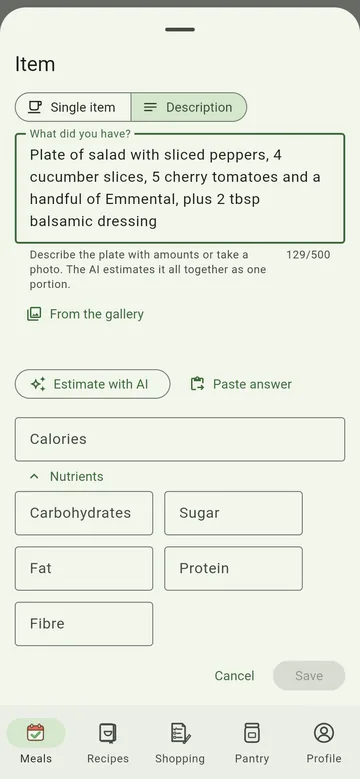
Description – for a whole plate instead of a single ingredient. Switch to Description at the top and write what you had, with amounts: "plate of salad with pepper strips, 4 cucumber slices, 5 tomatoes and a handful of cheese". The AI estimates it all together as one portion (Estimate with AI, then Paste answer). The item keeps the beginning up to the first comma as its name. If you already type a whole list in the "What?" field, MealCrew offers Estimate as description. Your description stays saved with the item: if you open the item later, the text is still there and you can edit it.
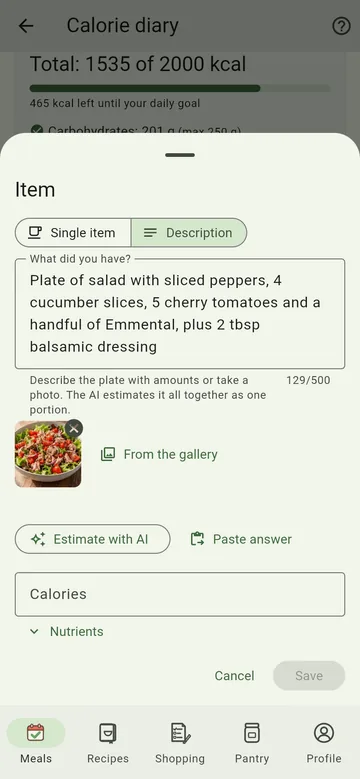
Estimate from a photo – instead of writing everything down (or in addition), take a photo of the plate. Under the description tap Take photo or From the gallery; a small preview shows the photo, and the x removes it again. Then Estimate with AI: MealCrew puts the finished prompt on the clipboard and, on a phone, opens the share menu with the photo and the prompt – pick your AI app there. The prompt asks the AI to estimate amounts and ingredients from the photo (plate size and cutlery as a scale) and to count sauces and oil realistically. Whatever you add to the description takes precedence over the photo – for example "dressing on the side, only ate half". Without a share menu, for instance in the web app, you attach the photo in the AI yourself. After that it goes on as usual: copy the answer, back to MealCrew, Paste answer.
The photo stays with you. It only goes to the AI you choose – not to MealCrew. MealCrew does not store it.
If you change a value yourself, MealCrew remembers your number: the next "chocolate bar" gets your value instead of the estimate.
Restaurant or takeaway
For food from a restaurant or delivery service, tap Restaurant or takeaway below the items. The item counts in servings:
- Type a dish such as "kebab", "pepperoni pizza" or "pad thai" and MealCrew suggests typical values for a restaurant portion – even offline. They are rough; real portions vary.
- Use ½, 1, 1½ or 2 to adjust the size.
- Estimate with AI is always available here: feel free to describe the dish in more detail ("large pizza with extra cheese"). The prompt asks the AI to assume a usual restaurant portion including oil, butter and sauces.
By barcode or photo
- Scan barcode (icon next to "What?") – for packaged food like a bar or a bag of gummy bears. Name, nutrients per 100 g and the pack size come from MealCrew's product list or from Open Food Facts. With ¼, ½ or 1 pack you choose how much you had. The next scan brings your own value.
- Photograph nutrition label (icon beside it) – take a photo of the table on the pack. Text recognition on your device reads the values per 100 g or 100 ml and scales them to your amount.
Estimate with AI
If MealCrew finds no value – or a meal has ingredients but no calories in the recipe – Estimate with AI and Paste answer appear:
- Estimate with AI puts a ready-made prompt with the name and amount (or the ingredients) on the clipboard and opens an AI if you like.
- Copy the answer there – one line with calories and nutrients. For a meal, the prompt asks for exactly one line for the whole meal. If the AI still sends one line per ingredient, MealCrew adds them up and tells you so.
- When you come back to MealCrew, the values fill in by themselves. If that doesn't work, tap Paste answer.
As with the other AI features, MealCrew sends nothing to the AI on its own – the text only goes via the clipboard, unless you set up your own AI key (Profile → Own AI key). More: Recipes with AI.
Sharing and pasting items
If someone ate the same as you – the tiramisu and the pizza from last night –, they don't have to record and estimate it all again:
- Tap Share below the items. All items with a calorie value are ticked; untick what doesn't belong. An item without a calorie value cannot be shared.
- In the share list choose WhatsApp (or another app). Even without a share menu the text is copied to the clipboard.
- The other person, who has MealCrew, copies the message and taps Paste in their calorie diary.
The items arrive with amount, unit, calories and nutrients – and with their description, if there was one. The text carries the day they come from: they are pasted on that day, not on the day you currently have open. Before pasting, MealCrew asks and shows what is coming. Anything already added on that day (same name, same amount, same calories) is marked and not preselected, so nothing counts twice; if everything is already there, you only get a note.
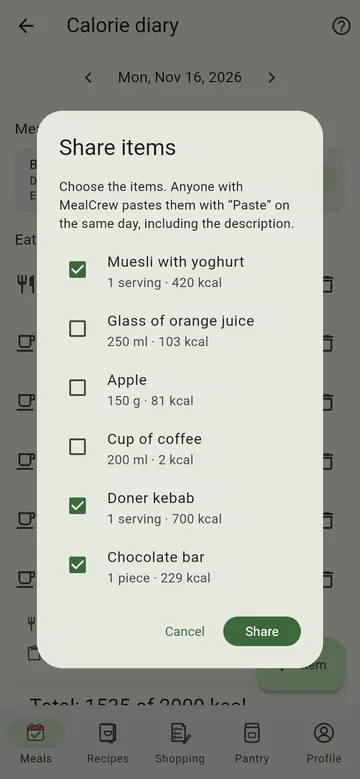
Only this text is shared, through the share menu or the clipboard – MealCrew does not send it itself. The other person decides what to take over when pasting.
The day's total
At the bottom you see the day's calories and, as soon as items have them, carbohydrates, sugar, fat and protein, and fibre where items have it. Items without nutrients carry a *; the totals are then incomplete.
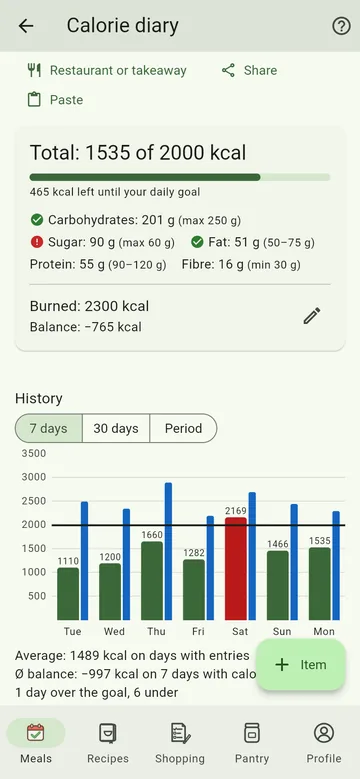
If you have set a daily goal, a bar shows where you stand ("Total: 1,250 of 2,000 kcal") and below it how much is left or how far you are over.
Below the total, Add calories burned records how many calories you burned that day in total – for example the value from your watch or fitness app. Below it you see the balance: intake minus calories burned, e.g. "Balance: −350 kcal". Saving an empty value removes it again.
With goals, the diary colours the totals like a traffic light, with a symbol and a colour: green is on target (kcal within 5 %, nutrients within their goal), yellow is close (up to 15 % off), red is well off. Each nutrient with a goal shows it in brackets, e.g. "Protein: 120 g (140–160 g)". On the current day only going over counts – too little simply means the day isn't over yet.
The history
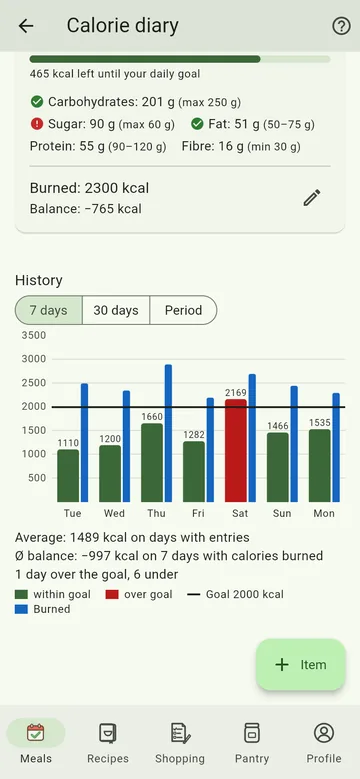
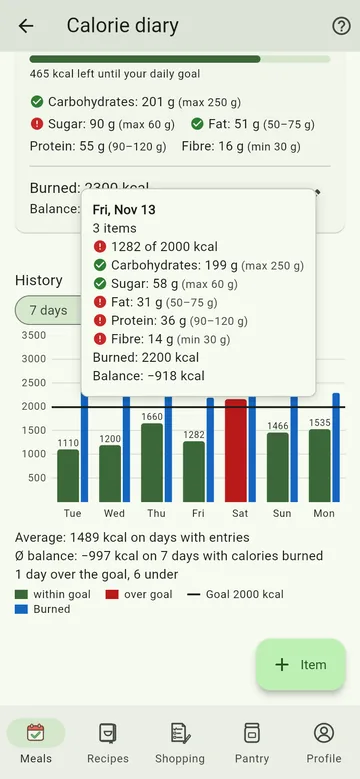
Under History, bars show the calories of the last 7 or 30 days – or of a period of your choice of up to 31 days, such as last Christmas. With grid lines every 500 kcal and the day's number above each bar (for 7 days). With a daily goal you also get a goal line, the colours green for within goal and red for over goal and the number of days over and under. The average only counts days with entries. If you have entered calories burned, a narrow blue bar stands next to that day's bar, and below the chart you see the average balance of those days. The legend below the chart explains the colours.
Tap a bar to see that day in a small window: the number of items, the calories against your daily goal, the nutrients with their traffic light and – if entered – calories burned and the balance.
Goals and deleting
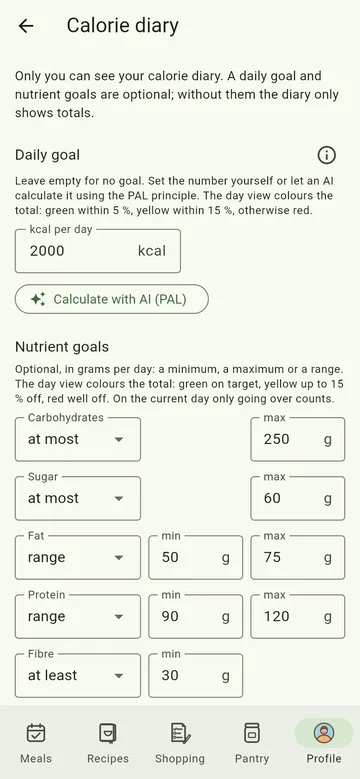
Under Profile → Calorie diary:
- Daily goal – a number between 800 and 10,000 kcal. Empty means no goal; the diary then only shows the totals.
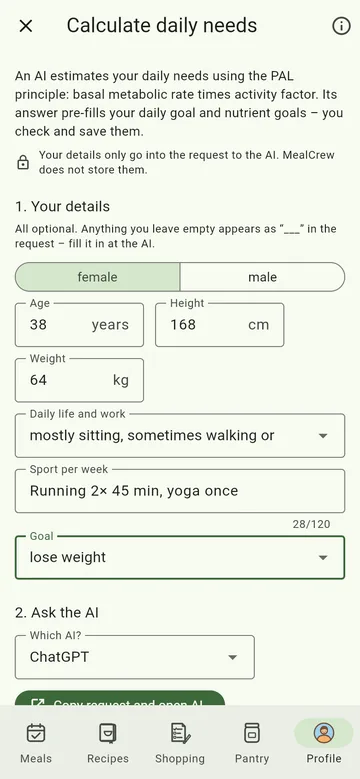
- Calculate with AI (PAL) – an AI estimates your daily needs using the PAL principle: total expenditure = basal metabolic rate × PAL value (physical activity level, about 1.2 for an entirely sedentary life up to 2.4 for heavy physical work). Enter sex, age, height, weight, daily life, sport and goal – all optional; anything left empty appears as "___" in the request and you fill it in at the AI. MealCrew does not store these details; they only go into the request. Copy the AI's answer back: its closing block pre-fills the daily goal and nutrient goals, you check them and tap Save goals. The ⓘ explains the PAL principle and links to Wikipedia.
- Nutrient goals – for carbs, sugar, fat, protein and fiber, each at least, at most or a range in grams per day, e.g. carbs at most 200 g, protein 140–160 g, fiber 35–40 g.
- Delete diary – deletes all items, calories burned, your learned values and all goals and withdraws your consent. Trial days already used stay used.
Your diary is also part of Profile → My data. If you delete your account, the diary is deleted with it.
Where the values come from
- the German Bundeslebensmittelschlüssel (BLS) by the Max Rubner-Institut – more than 7,000 foods and drinks, with English names too ("glass of milk"),
- Open Food Facts for packaged food by barcode,
- your own entries, the nutrition label photo or the AI.
These are average values without guarantee and not nutritional advice. The label on the pack is what counts.