
Recipes
Add recipes from a link, a photo with text recognition, pasted text or by hand – then cook, plan and shop.
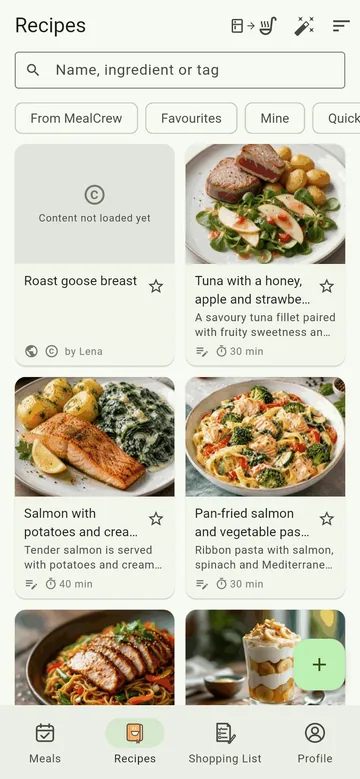
Recipes holds your collection. Search at the top by name, ingredient or tag; the filters below show, for example, only Favourites, only Mine or only quick dishes.
All buttons at a glance
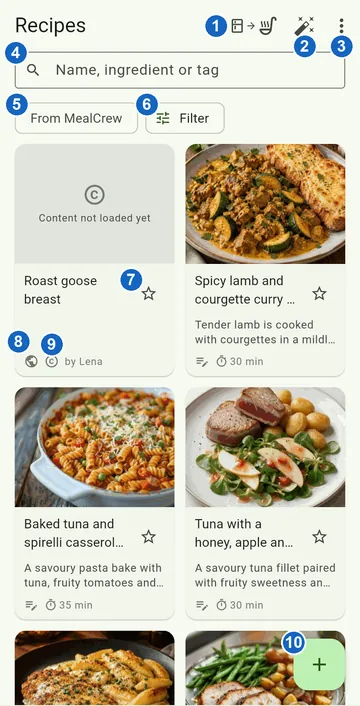
- Fridge → pot – Cook from your pantry: which recipes work with what you have? (MealCrew Plus)
- Magic wand – Recipes with AI: ask an AI for new recipe ideas.
- ⋮ (three dots) – Sort (newest, oldest, A–Z, Z–A) and Help for this page.
- Search box – search by name, ingredient or tag.
- From MealCrew – show the recipes from MealCrew instead of your collection.
- Filter – favourites only, your own only, quick dishes only, by category and more. A number shows how many filters are set.
- Star – favourite on or off.
- Source – where the recipe comes from: globe for a website, pin for Pinterest, camera for Instagram, notepad for entered by hand. Next to it the time; a padlock means only you can see the recipe.
- © – ingredients and method are still missing: the recipe comes from another website and was shared with you by name and link only (why).
- + – add a recipe (the four ways).
Tap a tile to open the recipe – this is what it looks like.
Not sure what a button does? In the ⋮ menu at the top right, Help for this page brings you straight here. And pointing at an icon with the mouse, or pressing and holding it, shows its name.
Adding a recipe
Tap +. There are four ways:
- Paste a link – from food blogs, recipe sites, Pinterest or Instagram. MealCrew reads name, ingredients and instructions from the page as far as it allows. On Android it is even quicker: tap Share in the other app and pick MealCrew.
- Enter it yourself – for typing up, e.g. from a cookbook, ideally with a photo and text recognition.
- Several links at once – with MealCrew Plus: paste a text with many links and MealCrew picks out the recipes.
- Paste recipe text – copied text, such as an AI's answer. MealCrew recognises name, ingredients and instructions.
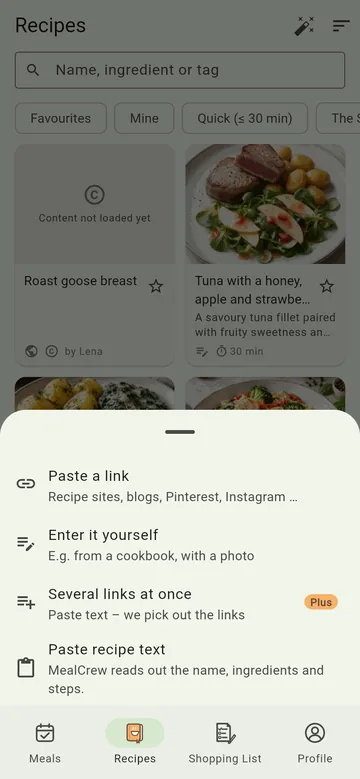
For brand-new ideas, use the magic wand at the top: Recipes with AI. What works with your pantry is shown by the icon to its left (fridge → pot): Cook from your pantry.
Text recognition: photograph a recipe
No need to type up a recipe from a cookbook, a magazine or a screenshot:
- + → Enter it yourself.
- Under Photos, take or pick a picture – the cookbook page or a screenshot.
- Drag the frame to the right section and tap Apply.
- Tap the scan icon at the bottom right of the photo. MealCrew reads the text – right on your device; the picture is not sent anywhere for this.
- Check the recognised text and choose Assign automatically: name, servings, time, ingredients and instructions land in the right fields. Or choose As ingredients or To instructions.
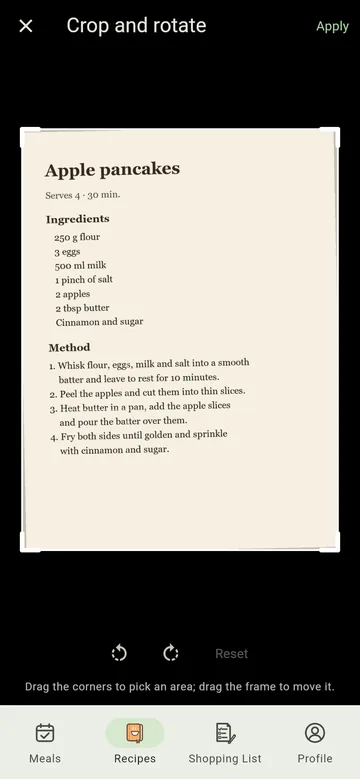
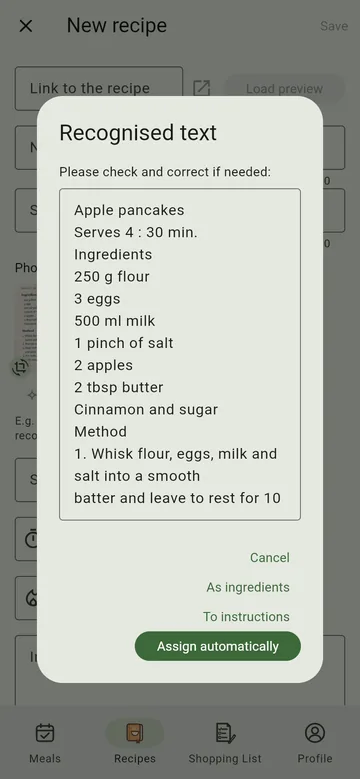
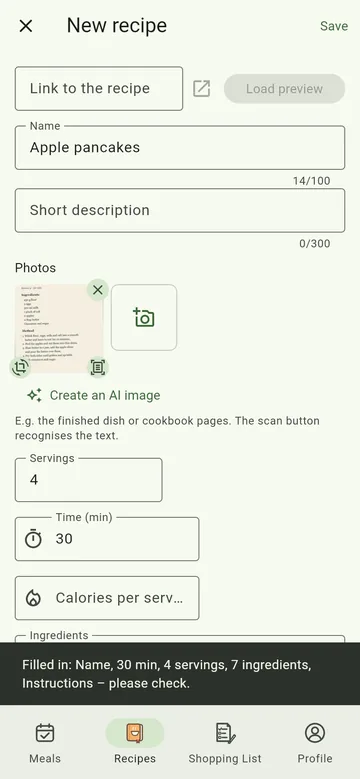
In the browser, text recognition takes a little longer the first time because it is loaded first.
Ingredients and groups
The editor takes one ingredient per line, e.g. "250 g pasta". MealCrew splits it into amount, unit and name. If a recipe has several parts, put a line like For the sauce: above them – it becomes a subheading for all lines below.
The recipe view
Cook, plan, shop – all from the recipe itself:
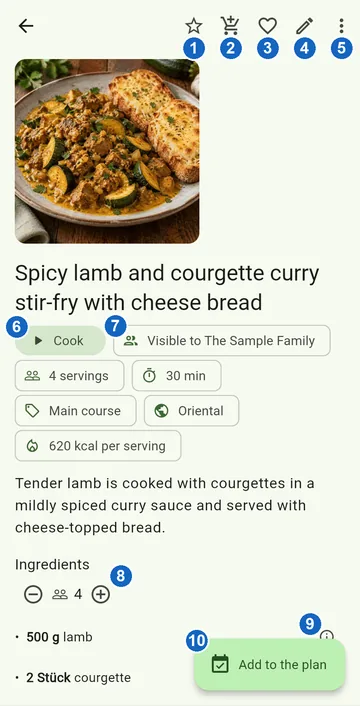
- Star – favourite on or off.
- Shopping cart – put the ingredients on the shopping list, converted to a different number of servings if you like.
- Heart – put the dish on the crew's wish list.
- Pencil – edit the recipe (your own recipes only).
- ⋮ (three dots) – Delete recipe (your own only) and Help for this page.
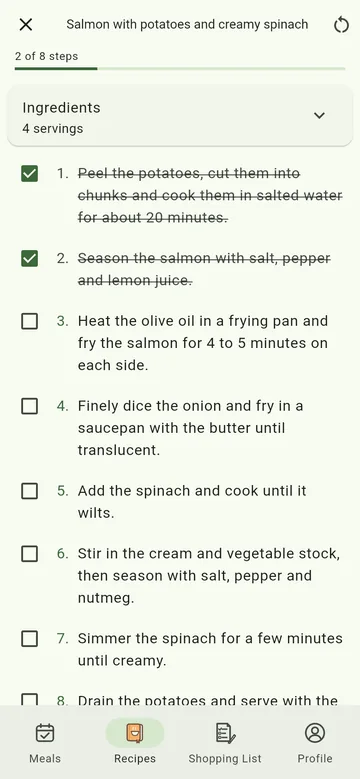
- Cook – the cooking view: tick off step by step, the ingredients fold out at the top. The screen stays on meanwhile; the light bulb at the top turns that off, and your device remembers the choice.
- Visible to – which crews can see and plan the recipe (more).
- − and + – convert the ingredients to fewer or more servings.
- ⓘ next to an ingredient – its nutritional values, with the source.
- Add to the plan – plan the recipe as a meal.
Sharing with your crew
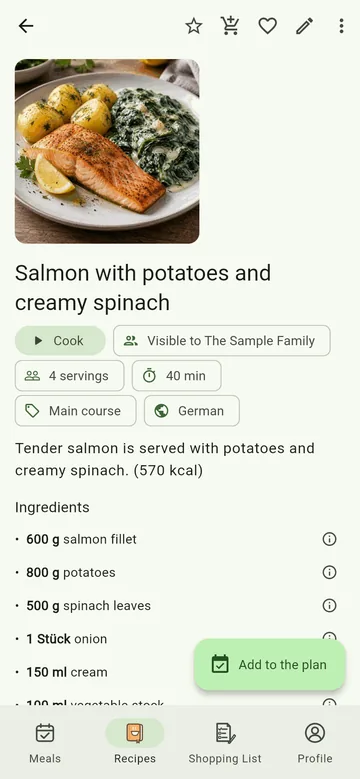
Under Visible to you choose which crews can see and plan a recipe. Only the person who added it can change it. For recipes from other websites MealCrew shares only the name and link, for copyright reasons – the FAQ explains why.
Recipes from MealCrew
mealcrew.de has its own recipes to cook – home-cooked and free to use. You also find them right in the app:
- The From MealCrew filter above the recipe list shows them all. One tap puts a recipe into your collection, complete with photo; the tile then says In your collection.
- If your collection is still empty, the MealCrew recipes appear right below – so a new crew has something to choose from on day one.
- On the website, Add to MealCrew does the same.
Nothing is added twice: if you already have a recipe, yours opens.